Like many popular note apps, Amplenote allows users to build up a plan that sources from your existing tasks to figure out what deserves your time on a given day or week.
On this page, we'll detail how Amplenote's system works, and how it compares to offerings from other popular todo apps in Q4 2026.
linkWhat it does: The most relevant agenda
When you plan your agenda with Amplenote, you get a powerful, feature-rich experience with flourishes born from its daily use among our team:
Generated Project Picker. If you can introspect your way to a couple high-level intents (though Amplenote helps brainstorm these too), we can suggest high-level projects that align with your existing tasks and notes.
Pick your weekly cadence once, respect day of week preferences. No template to download, no prompt to craft. After you've figured out some Projects, you tell us about how often (and if there are any special days-of-week) you want to do it
Suggest tasks complementary to calendar events. When you have an upcoming meeting, we'll always start by suggesting tasks related to that person/company, e.g., "Prep work for X" 2 hours before
Suggest new tasks (if they're better than existing) (!). Every day you visit your Dashboard, we are generating new ideas to progress toward your goals, and they constantly compete with your existing tasks in a battle for relevance and actionability.
Help maintain progress on many things. You don't have to remember that every week you wanted to move the ball forward on X. If you haven't completed a task for it yet, we'll prioritize it on the schedule.
Build a long-term plan. Zoom out to a one-week view and receive suggestions for every day. Swap to next week and repeat the process if you trust in your ability to pick next week's tasks better during this week.
Retrospective: how the last week/month/quarter went (coming soon). By November 2026, you'll be able to get an Amplenote-wrapped style rundown of what you focused on, and how that went for you.
All of which becomes both suggestions in your Dashboard (via Proposed Agenda) as well as suggestions on your calendar:
linkHow it works: Make a plan, get it done
The components involved in configuring your suggested agenda items are the Plan Builder (in the "Dashboard" pane) and the Calendar.
To enable it all this functionality, you need to connect an LLM. We recommend Agent Pro ($8/month) or an Amplenote Founder subscription ($24/month), both of which include enough quota to allow you to plan every day with Plan Builder. It's also possible to provide an LLM key to Dashboard via its "Settings" link.
linkStarting point: Quarterly plan
The first step to planning with Amplenote is to make a plan (why?). This begins by clicking the button in the upper left of the Dashboard, to open the plan for whatever quarter it is when you're reading this:
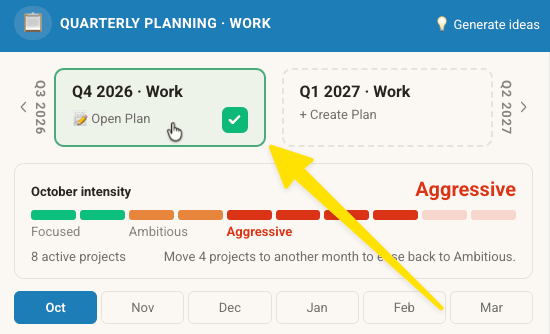
If you haven't made a plan yet, the link in upper right will say "Build Plan," it goes to the same place as clicking current quarter
From there, answer a few questions (Intent => Projects => Cadence => Finalize). That's it.
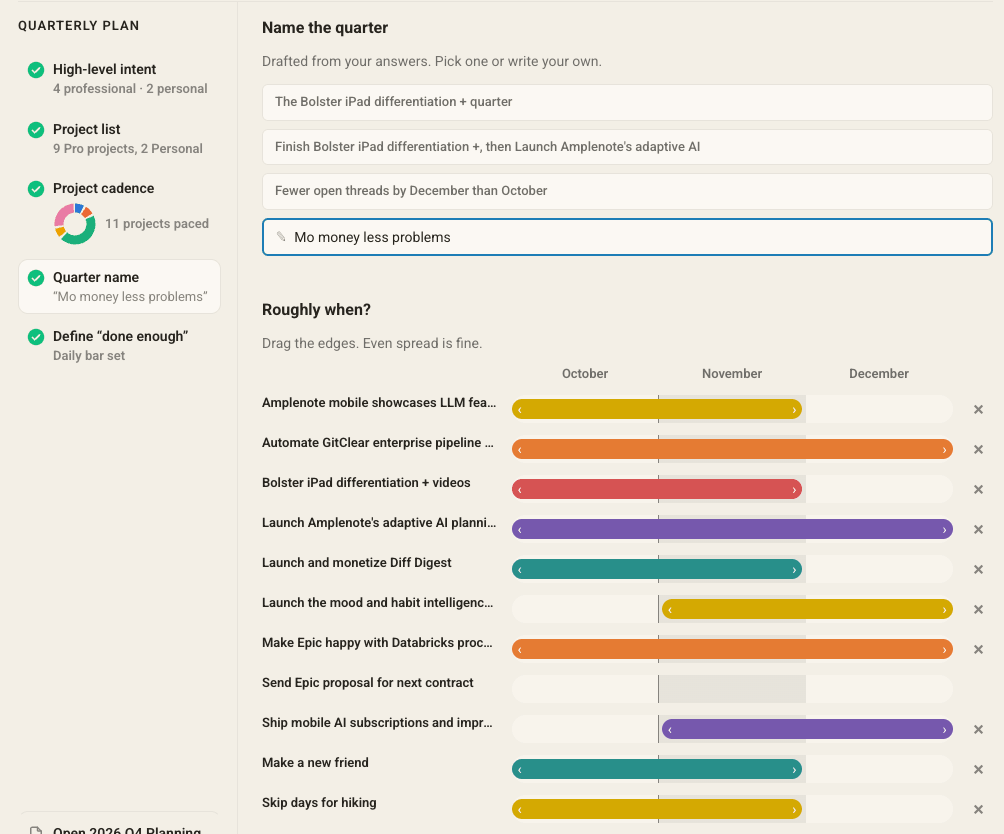
Finalize the plan by choosing whether Projects are scoped to a particular stretch of the quarter
If you want to see a 3 minute video showing approximately how it looks to progress through the Plan Builder, click here.
linkCalendar Suggestions: Factors Considered
Using your Quarterly Plan, Amplenote will generate more and more ideas for your Projects every time you either visit the Dashboard. If you want to induce extra idea generation (for example, after you first set up your plan), click the "Generate ideas" link in the upper-right of the Quarterly Plan component.
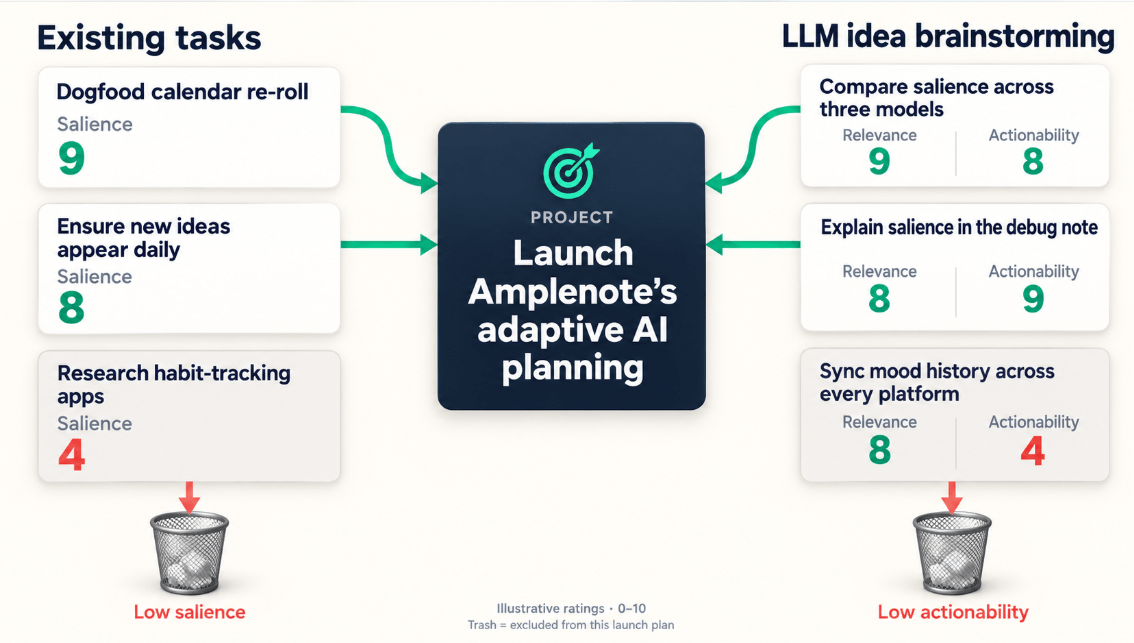
Every time you visit Dashboard or click "Generate Ideas," better new and existing ideas are connected
This means that, when you click the "Suggested" (or ✨ on mobile) button on Calendar, the tasks that you see are the best-rated options that have been found across all runs.
Once we've recorded quality scores for existing and new tasks, the planning agent dives into other factors that feed into crafting an idea schedule:
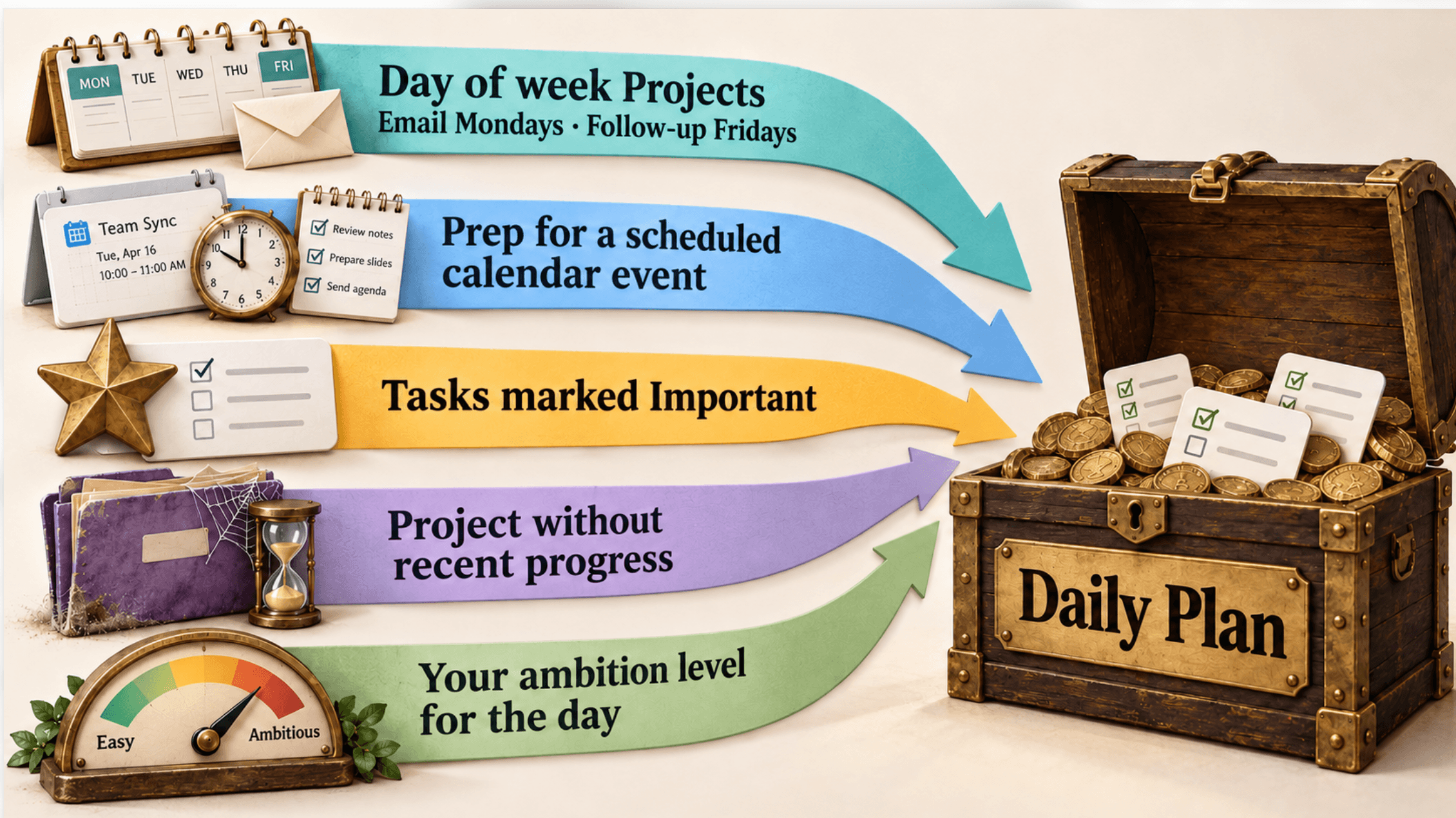
Various inputs factored into calendar task suggestions
What drives them?
Day of week Projects: Set up during Plan Building
Prep for scheduled calendar event: Connect an external calendar
Tasks marked Important: Press Ctrl-I or tap the star underneath a mobile task
Recent projects without progress: Any plan from past week without a completed task
Ambition level: After you click "Suggested" on calendar, click or tap it again to pop up your "suggestion steering" options
When you click to steer your suggestions, you'll get a collection of options to match your desired focus:
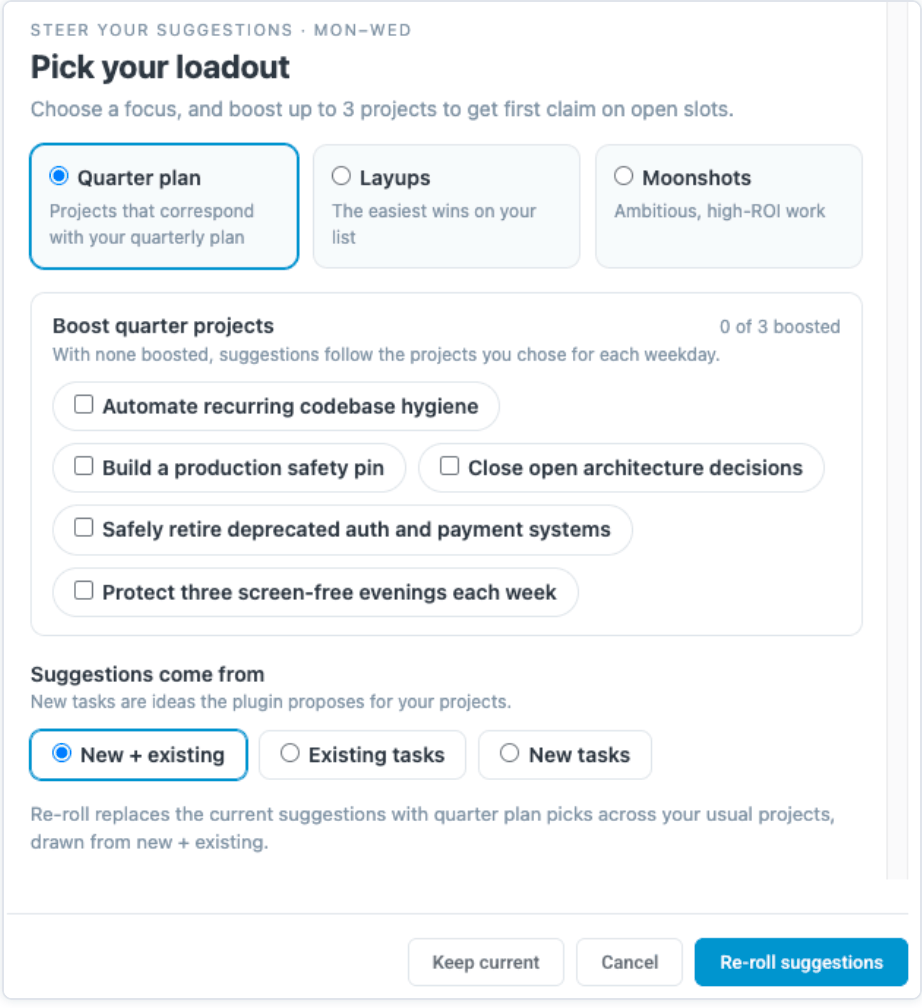
Pick Projects for focus, specify ambition level, choose whether to propose new or existing tasks