Amplenote's "classic" feature is its "drag to schedule" calendar, launched alongside the original app way back in 2020. It is very cool to be able to see your tasks sorted by relevance, to be scheduled by one click and drag on desktop or mobile.
But you know what's cooler? Not dragging your tasks at all. Who's to say that you are the best arbiter of what will advance your long-term goals? Do you even have long-term goals? 😉
Seriously, though, there is something weirdly powerful about seeing your tasks ghosted on the calendar, and imagining how much better off you could be if you embodied that prospective reality.
linkEnabling calendar suggestions
There are a couple pieces that need to be in place to start seeing suggested tasks on your calendar.
link1. Help your assistant understand what is Important to you
When you visit the Amplenote Dashboard, the default top-left component encourages you to think about what quarterly goals to pursue. As of 2026, we even have a Plan Builder that interactively walks you through possible projects that could make this a quarter that you look back on wistfully.
However you swing it, it's impossible to make useful suggestions until you've prescribed what it is that you're working toward this quarter.
link2. Enable LLM connectivity
Most users who productivity depends on Amplenote find their way to our Agent Pro plugin, which is your one-stop-shop for infusing your notes with all the benefits of frontier LLMs.
However, it's also possible to configure Amplenote for piecemeal connectivity. Since the calendar suggestions are generated by the Dashboard, you'll need to click the "Settings" link in the upper-right corner of the Dashboard, then choose your preferred AI provider (we support all the major ones) and paste in your API key (we provide a link where you can retrieve it, depending on provider).
link3. There is no step 3
And that's really all it takes..!
Once you have filled out a template for your goals, and you have signed up for Agent Pro (or provided an LLM key), you'll see a new button emerge on both desktop and mobile versions.
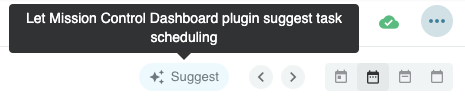
Upper-right corner of calendar
After clicking it, we'll collect all your tasks from across all the notes in your Task Domain, along with your prescription for "what are the major projects of this month?" and "what are the preferred types of task for this day of the week?" and "what ideas align with the already-scheduled tasks?"
linkUnder active construction
As of September 2026, the suggested task retrieval takes 30-60 seconds. We expect to rapidly enhance the suggestion process, during Q4 2026.
Included in the upcoming slate of features will be the means to provide extra direction when the initial task suggestions don't match your preference.