A Kanban board turns part of an Amplenote note into a set of columns. Use it any time you want to group tasks into different stages, different recipients, or different groups of whatever sort:
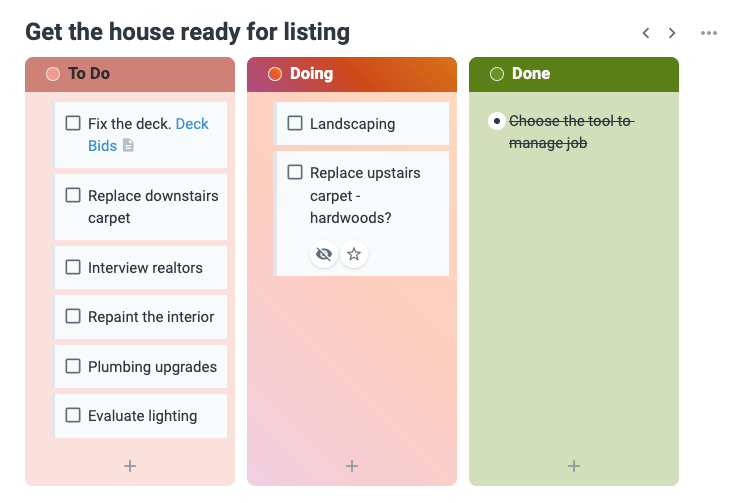
For a multi-part project, Kanban helps coordinate which tasks are where
linkInsert a Kanban board
Place your cursor where you want the board and click Insert Kanban board in the formatting toolbar.

The three-column toolbar button inserts a board at the cursor.
If you’re already typing, enter /kan on a new line and choose Kanban board from the slash menu.
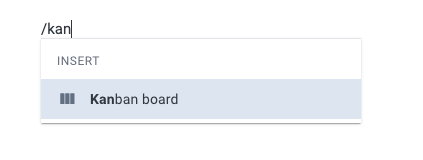
Type /kan to bring Kanban board to the top of the slash menu.
A new board starts with To Do, Doing, and Done. Click the board title to name your project, or click a column name to change it.
linkOptions for Adjusting Your Board
A Kanban board holds tasks that are visible throughout the app. However, they also exist in a specific context that you can always target if you want to move a task straight into your Kanban from another note:
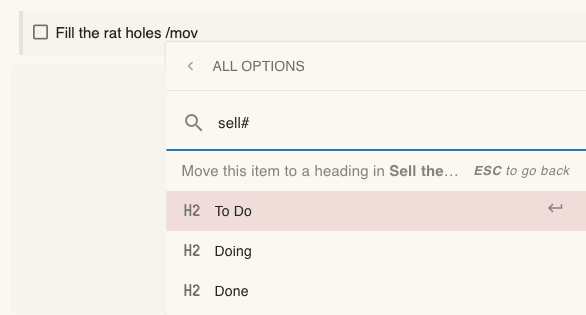
Use /move start to type the note with the Kanban, then use # to pick a column
linkAdd tasks and move them between columns
Click + at the bottom of To Do and type a task, such as Interview realtors. When you start making calls, drag the task into Doing. You can also place your cursor in the task and use Move to next column or Move to previous column from the slash menu.
When you finish, click the task’s checkbox. Amplenote records it in the note’s Completed tab and leaves a crossed-out bullet at the bottom of its current column. If you want finished work grouped under Done, move the task there before checking it off.
For an item that doesn’t need a checkbox, hover over the column header, open ⋯ (Column options), and choose New bullet item. The same menu offers New task when you want a checkbox.
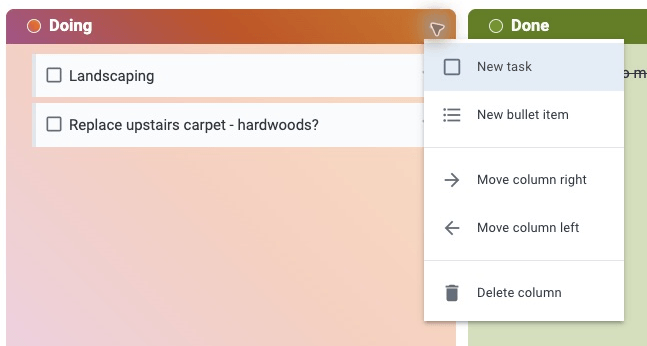
Open the menu in the Doing header to add a task or bullet, or to move the whole column.
linkAdd, reorder, or delete columns
To track work you’ll hand off, open ⋯ (Board options) at the right end of the board title, choose Add column, and name the new column To delegate.
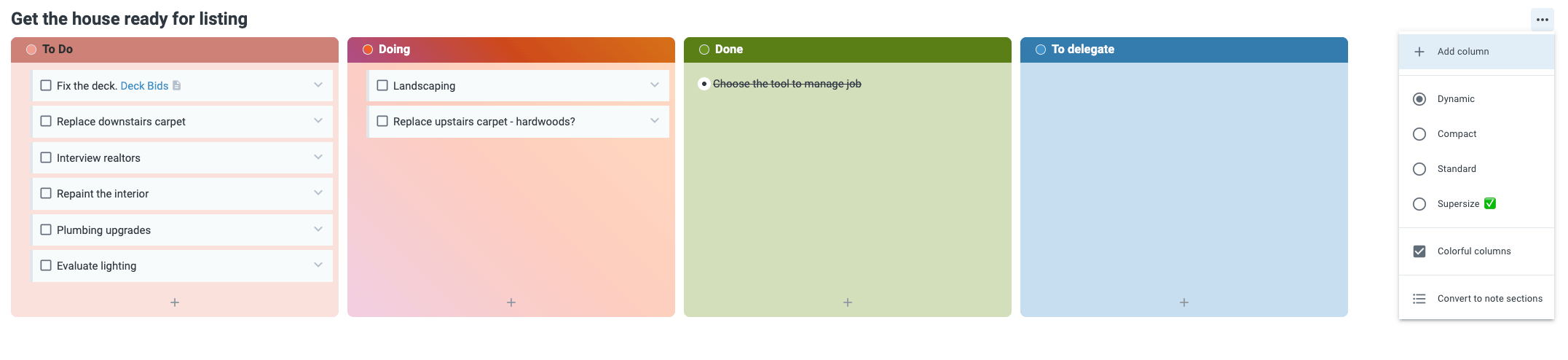
To change the order, open ⋯ in the column’s own header and choose Move column left or Move column right. This moves the whole list with its heading. Delete column removes the column and its items. Move any tasks you want to keep to another column first.
linkChoose column colors
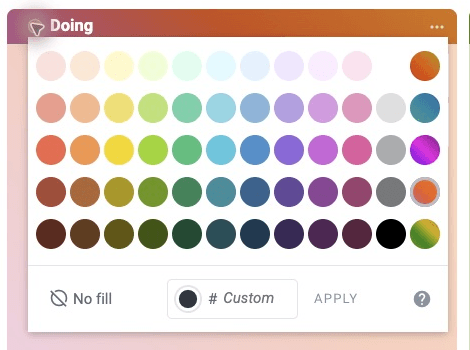
Click the colored dot beside a column name. Choose a swatch, enter a custom hex color and click Apply, or choose No fill. To show the colors across the column backgrounds, enable Colorful columns in the board menu.
linkAdjust column widths
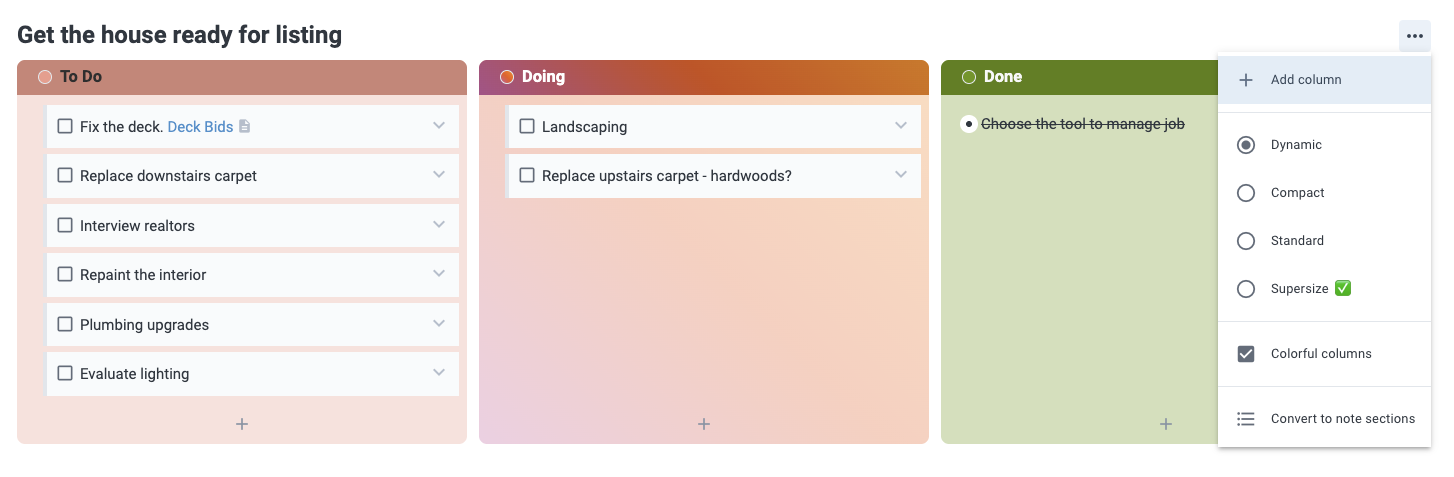
Open ⋯ beside the board title and choose Dynamic to let Amplenote size the columns for the available space. The green check shows which width Dynamic is using. To keep a fixed width, choose Compact to fit more columns on screen, Standard for a middle width, or Supersize to give long task names more room.
linkSee also
There are different ways to create Kanban boards if you want some specific property, like for the tasks to exist in different notes:
Kanban Board – Popular plugin with 1,000+ installs